
Upgrading the SAR application? Please read important note before doing so.
Introduction
Zendesk Tools for Amazon Connect is a standalone set of three AWS Lambda functions to assist with integrating an Amazon Connect instance with associated Zendesk Support instance. It enables driving the business logic of either DTMF driven (classic IVR) or conversation driven (LEX bot) contact flows, based on search results from the Zendesk Support API. It then allows creation of new tickets and/or users, should the business process require that. Finally, it can present (pop) the selected ticket or user to the agent that receives the call.
These three operations (search, create and pop) are performed within a contact flow by calling a corresponding lambda function which is installed as part of an application within the AWS Serverless Application Repository. These lambdas in turn call the Zendesk Support APIs, based on parameters passed from the contact flow. Note that for pop function, the Zendesk account must have a Talk Partner Edition installed and active.
Lambda functions called from Amazon Connect follow a simple interface - accepting a key/value map of arguments and returning another key/value map as a response. In the contact flow, values are then extracted from the map as contact flow attributes of type External and using the key as the attribute name or directly as $.External.<key> (see this AWS documentation for more in-depth information).
Search function
The following types of searches are supported:
-
search for user by user ID
-
search for user by caller’s phone number (CLI)
-
search for ticket by ticket ID
Search Parameters
To tell the lambda which of the above search types to use, we pass the parameter search_by with one of the following values zendesk_user, calling_user, custom_field, or zendesk_ticket, followed by none, one or more additional parameters:
|
|
Additional parameter(s) |
Comments |
|---|---|---|
|
|
|
Looks for exact match |
|
|
None |
Will use detected calling number (CLI) and return the user that has this number as a direct line (not shared) |
|
|
|
Looks for exact match |
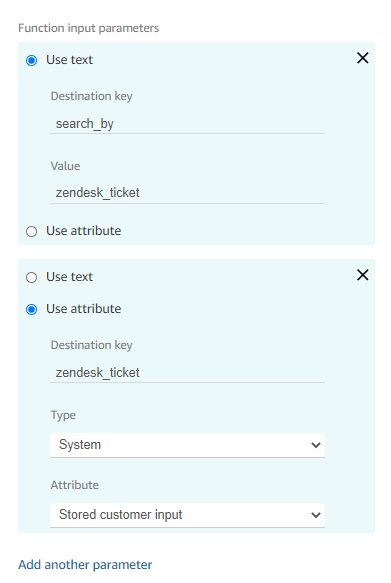
Below is an example of configuring the lambda call block in a contact flow, where we want to search for a Zendesk support ticket by its number captured in a previous prompt:
For search_by types that return complex information instead of a simple key-value map, make sure to select JSON as Response validation type in Lambda invocation block:
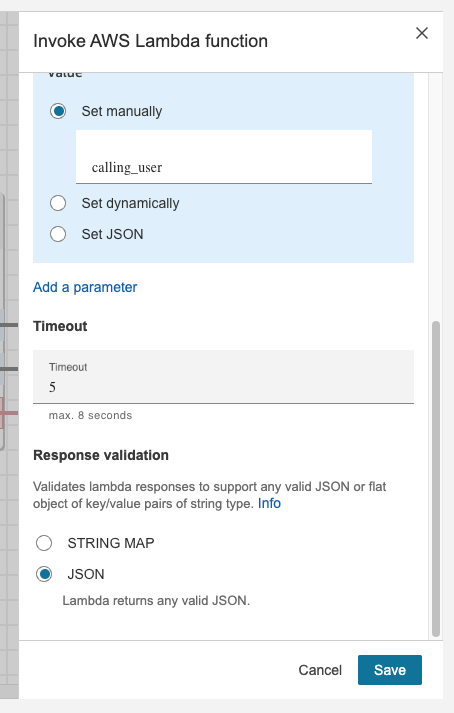
This way you can access nested values by using dot notation, eg. $.External.user_fields.member_since
Return Status
Depending on the search type, the response from lambda will have different fields in the key/value map. All responses will have a status field, which can have one of the following values:
-
ok: the search was successful, we have found at least one matching user or ticket -
not found: the search couldn’t find any user or ticket based on given parameters -
bad request: some parameters are missing or invalid -
server error: there was a networking error or some other technical issue
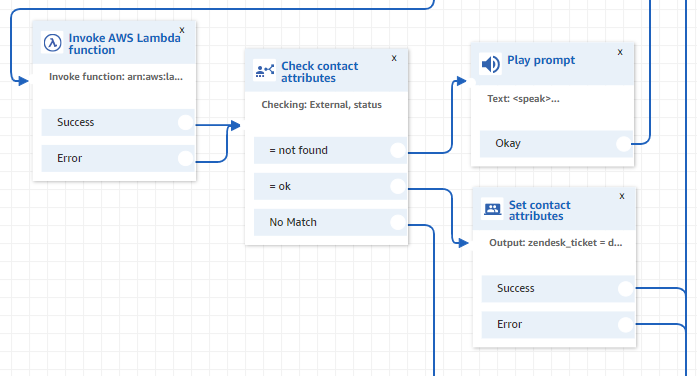
Here’s a cut-out from a contact flow depicting how we may branch based on the status value returned from the lambda:
Common Fields
Apart from the status field, each response also contains some common fields, depending on what we’re searching for (i.e. a user or a ticket):
Common user fields
|
Field name |
Zendesk API property |
Field value |
|---|---|---|
|
|
id |
Unique user ID within the Zendesk system. |
|
|
name |
User’s full name as stored in Zendesk |
|
|
phone |
User’s primary phone number |
|
|
external_id |
A unique identifier from another system, eg. accounts |
|
|
N/A |
User’s first name (extracted from full name) |
|
|
|
User’s email address |
|
|
role |
User's role. Possible values are |
|
|
locale |
User’s locale, eg. |
|
|
iana_time_zone |
User’s time zone, eg. |
|
|
organization_id |
The id of the user's organisation - see Zendesk documentation for more information |
|
|
suspended |
Whether the user is suspended |
|
|
user_fields |
Custom defined user fields. This can be accessed using dot notation, eg. |
For more details on the Zendesk API user properties please check this documentation.
Open tickets
User search also returns a field called open_tickets, which returns a count of user’s tickets that are in any state except solved or closed.
Common ticket fields
|
Field name |
Zendesk API property |
Field value |
|---|---|---|
|
|
id |
Unique ticket ID within Zendesk system. |
|
|
requester_id |
The ID of the user who requested this ticket |
|
|
subject |
The value of the subject field for this ticket |
|
|
status |
Current ticket status. Can be |
|
|
brand_id |
The ID of the brand this ticket is associated with |
For more details on Zendesk API ticket properties please check this documentation.
These returned fields can then be used to further drive business logic within the contact flow. For example user_locale can be used to play prompts in the customer’s native language, brand_id and organization can determine routing to appropriate queue or another contact flow, etc.
Create function
This function creates a new ticket for an identified user, or a new user and a ticket for them.
Create Parameters
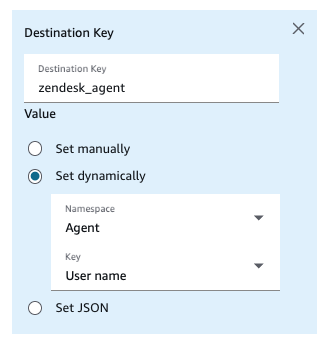
To tell the lambda which of the above two scenarios to apply, we pass the parameter zendesk_user to the Search function. When zendesk_user has a value (of Zendesk user ID, usually captured by a previous call) then a new ticket will be created for that user. When zendesk_user is empty or not specified, then a new user will be created, followed by creation of a new ticket for this new user.
|
|
Additional parameter(s) |
Comments |
|---|---|---|
|
|
|
Creates a new user with a phone specified in This text will appear as initial internal note on the ticket If provided, will assign the ticket to that agent and pop the ticket to them* |
|
Zendesk user ID |
none
|
Creates a new ticket for the specified Zendesk user This text will appear as initial internal note on the ticket If provided, will assign the ticket to that agent and pop the ticket to them* |
* This will normally happen inside of an agent whisper flow, when the agent who has accepted or initiated the call is known. As a value we pass the Connect’s agent username.
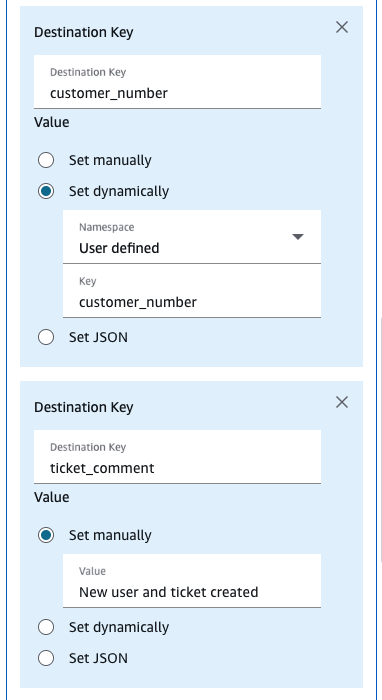
Example lambda call parameters:
Return Status
The response from lambda will have common ticket fields in the key/value map. It will also have a status field, which can have one of the following values:
-
ok: the creation process was successful -
bad request: some parameters are missing or invalid -
server error: there was a networking error or some other technical issue
Open tickets
Note that Create function also returns a field called open_tickets, which is set to 1.
Pop function
This function, which should be called in the Agent Whisper Flow, presents (pops) either a specified ticket or a specified user screen to a Zendesk agent who has accepted (or initiated) the call.
Pop Parameters
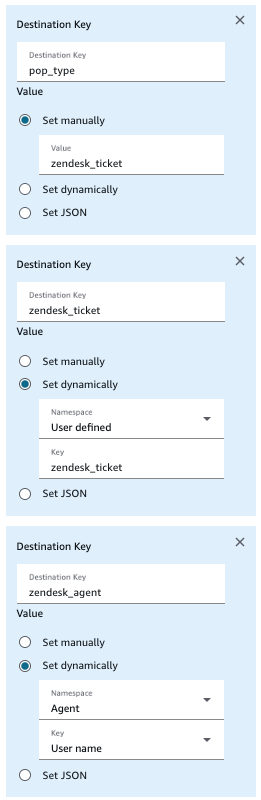
To tell the lambda which of the above two pop scenarios to use, we pass the parameter pop_type with the value of either zendesk_user or zendesk_ticket, followed by additional parameters:
|
|
Additional parameter(s) |
Comments |
|---|---|---|
|
|
|
Should be set as a contact flow attribute in the preceding flow Note - Zendesk and Connect usernames must match |
|
|
|
Should be set as a contact flow attribute in the preceding flow Note - Zendesk and Connect usernames must match |
Example lambda call parameters:
Return Status
The response from this lambda will only have a status field, which can have one of the following values:
-
ok: the creation process was successful -
bad request: some parameters are missing or invalid -
server error: there was a networking error or some other technical issue
Installation guide (for a Service Consultant)
This part describes steps to install the required infrastructure in client’s AWS account.
Make sure you are in the same region as your Connect instance.
Click on Available applications.
Under Private applications, select the checkbox Show apps that create custom IAM roles or resource policies.
Ensure the app has been shared with the AWS account you’re deploying to.
Search for and select Zendesk-Support-add-ons-for-Amazon-Connect.
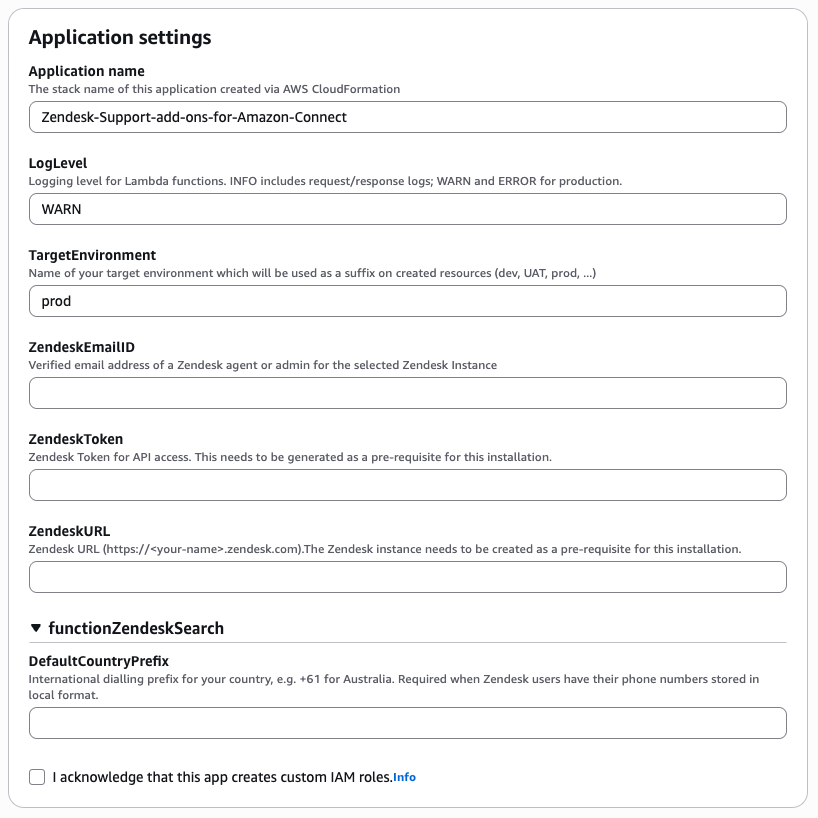
Scroll down to Application settings and enter the following information:
Application name
Leave this as is.
TargetEnvironment
This is the name of your target environment (dev, UAT, prod etc). If unsure, just leave as prod.
ZendeskEmailID
Enter the verified email address of a Zendesk user for your Zendesk instance. It’s advisable to create a dedicated Zendesk user for this integration so the functionality is not broken when a Zendesk user is removed (eg. if the related person leaves the company).
ZendeskToken
Sign in to your Zendesk admin portal. Navigate to Apps and integrations → Zendesk API.
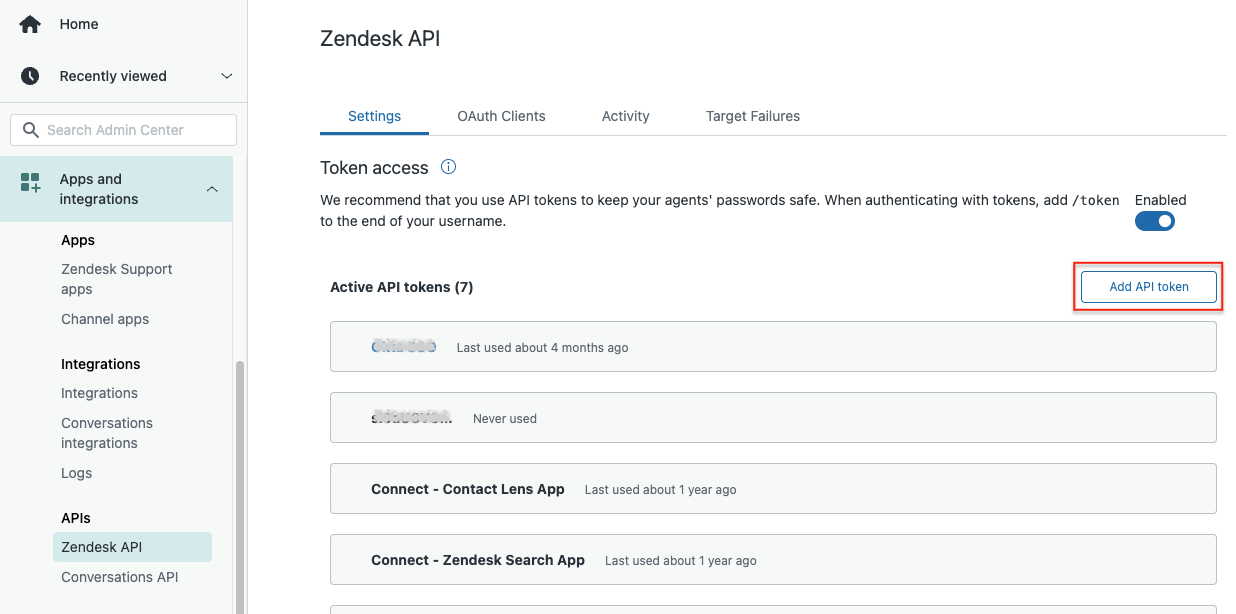
Click on Add API token.
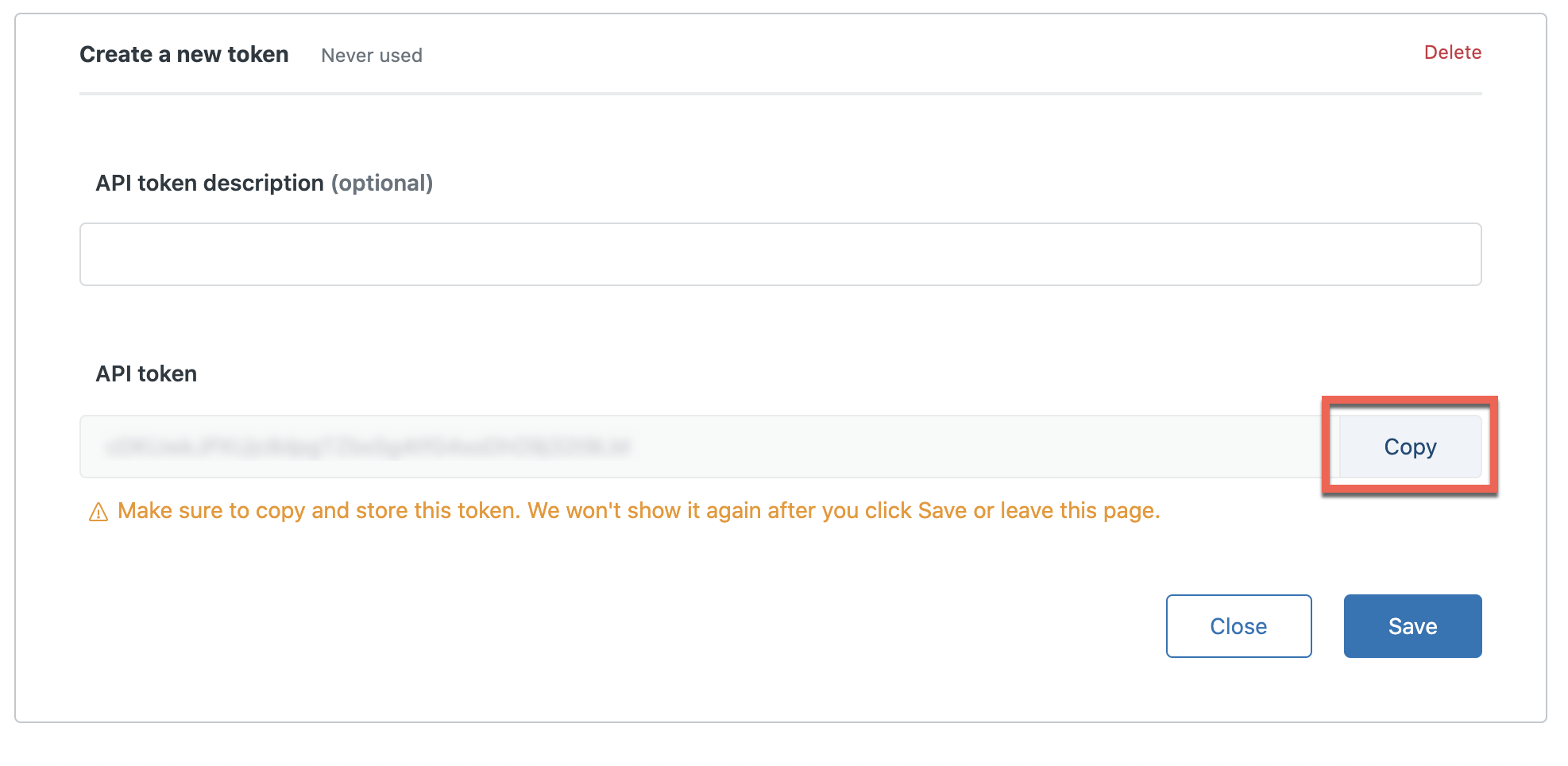
Click on Copy. Paste the API token into the ZendeskToken field.
ZendeskURL
Enter the URL of your Zendesk instance. Ensure the URL begins with https:// and do not include / at the end of the URL or the stack will fail.
DefaultCountryPrefix
Specify a country prefix where most of the callers are from.
Select the checkbox to create custom IAM roles and click on Deploy.
Whitelist lambda functions for Connect
Once your stack has been successfully created, scroll down and take note of the lambda name.
In your AWS account, search for and select Amazon Connect. Click on your Amazon Connect instance.
Click on Contact flows.
Under AWS lambda, click on the Function dropdown and select the lambda that was created during the stack.
Click on Add lambda function.
Once you have added the lambda to your Connect instance, you will then need to add the lambda to your contact flows.